
Managing Multiple Stores
Connect and switch between multiple stores in one account.
Managing multiple stores
If you operate more than one store — different Shopify shops, separate WooCommerce installs, or stores on different platforms — you can connect them all to a single Shopimize account.
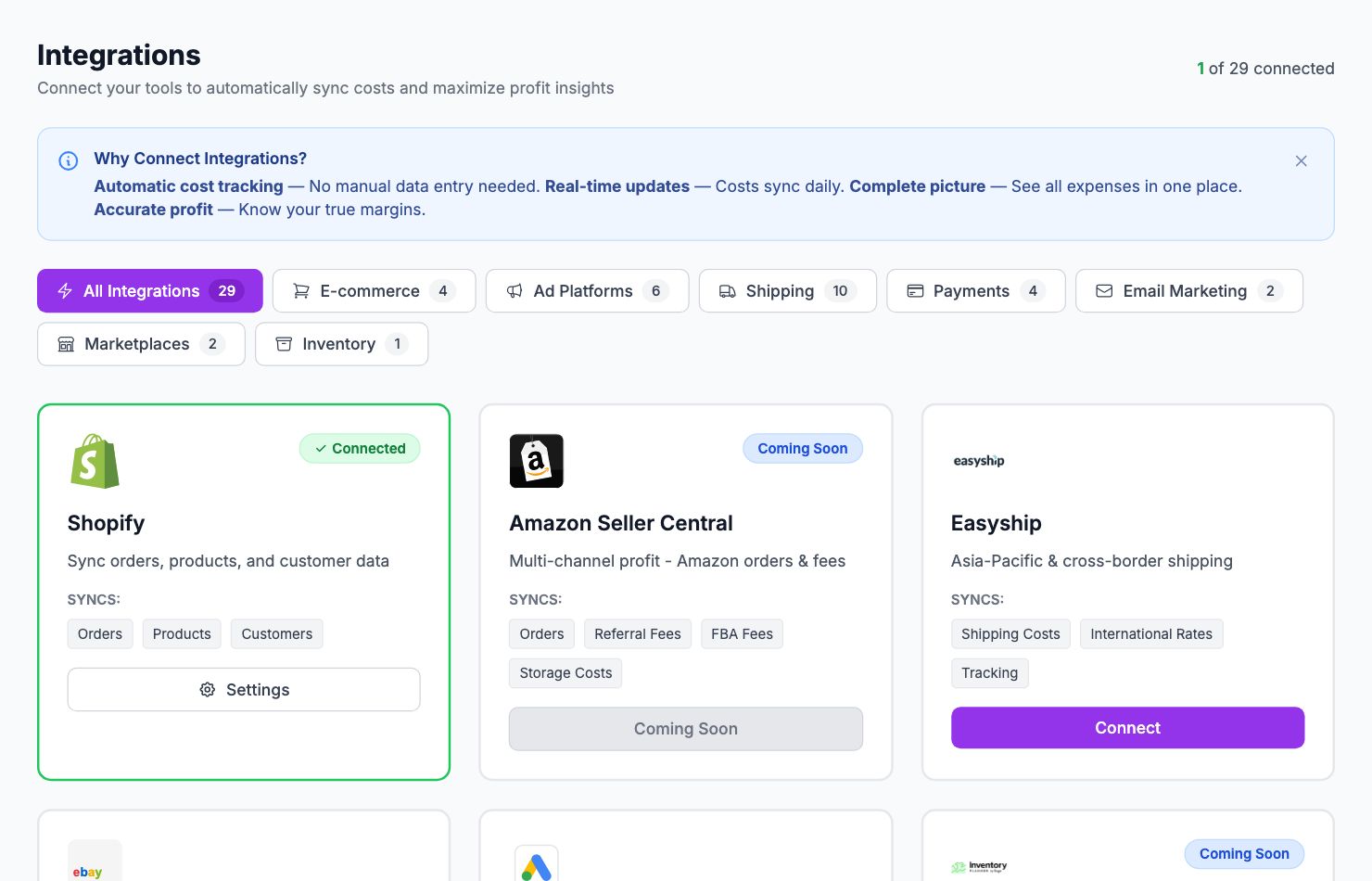
Adding a second store
Go to Integrations and connect the additional store the same way you connected your first one. Each store gets its own connection.
After connecting, use the store switcher at the top of the sidebar to switch between stores. Analytics, costs, and settings are separate per store.
Combined view
The store switcher also has an All Stores view that aggregates metrics across all your connected stores. Use this for a top-level overview when you want to see total revenue and profit across everything you run.
Note: the combined view shows aggregate numbers. Drill-down analytics (like specific order detail) are only available in individual store views.
Cost settings per store
Product costs, commission rules, shipping settings, and integrations are all per store. If you sell the same product in multiple stores, you'll need to enter the cost separately for each one.
Billing
Multiple stores don't cost extra — your plan covers all connected stores. However, order volume counts across all stores. If you have 3 stores each doing 500 orders/month, that's 1,500 orders/month against your plan limit.
Disconnecting a store
Go to Integrations, find the store you want to remove, and click Disconnect. Historical data from that store is kept in Shopimize for 90 days before being deleted.
Related Articles
- Product Labels & SegmentationCreate custom product groups based on margin, revenue, or custom rules.
- Commission Rules SetupConfigure payment gateway and marketplace fees per channel.
- Custom Cost TrackingAdd fixed or variable expenses that aren't captured automatically.
- API AccessUsing the Shopimize API to integrate with external tools.
- Data Retention & HistoryHow long Shopimize keeps your data and what happens to it.
- GDPR & Data ExportExport all your data or request account deletion in compliance with GDPR.