
Product Labels & Segmentation
Create custom product groups based on margin, revenue, or custom rules.
Product Labels & Segmentation
Product labels let you tag products based on performance data, then push those tags to Google Merchant Center as bidding signals.
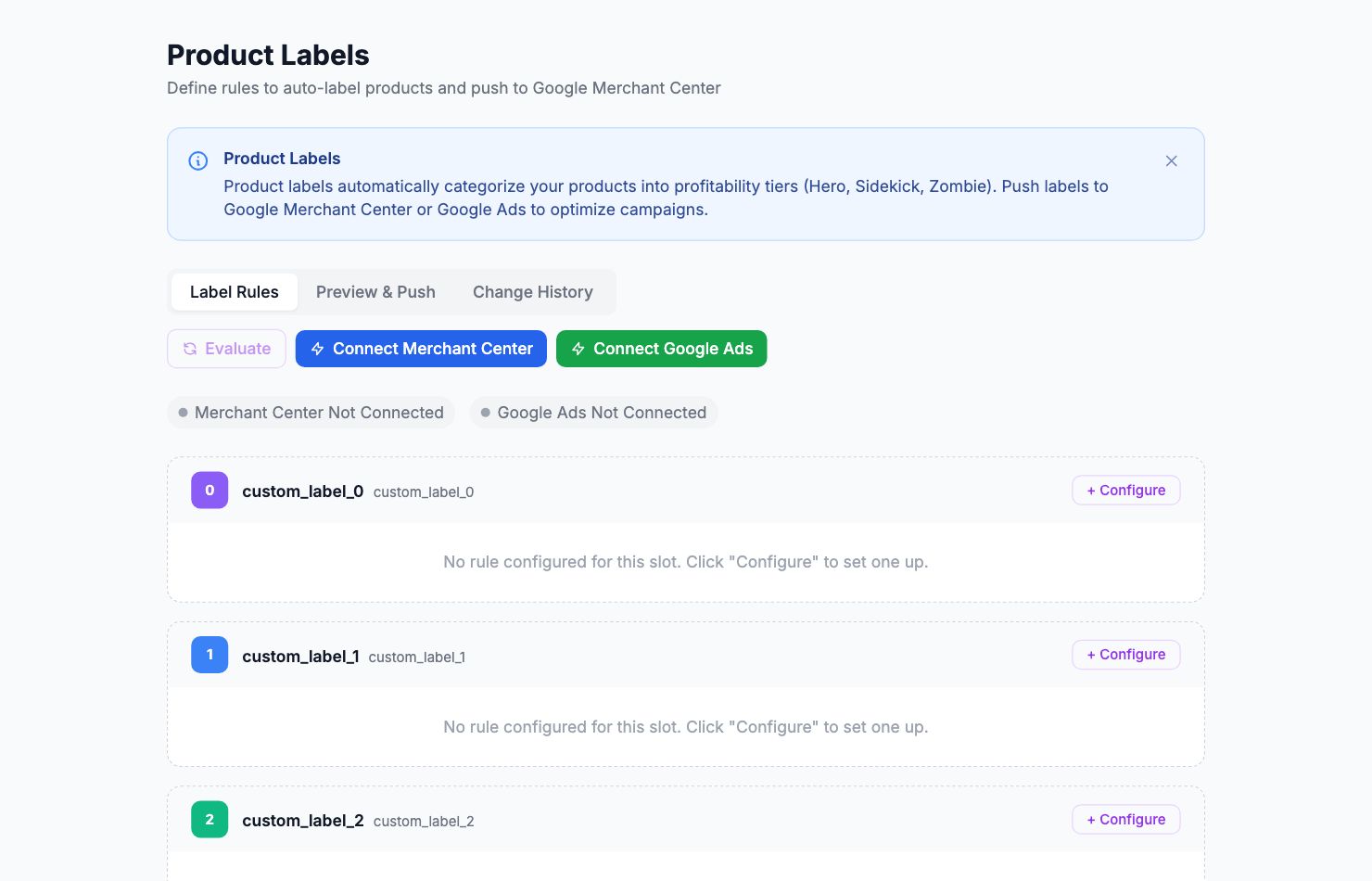
Creating a label rule
Go to Settings → Product Labels and click Add Rule. Define the conditions:
- Metric: margin, revenue, units sold, or profit
- Operator: greater than, less than, between
- Value: your threshold
- Label name: what to call matching products (e.g. "High Margin", "Top Sellers", "Underperforming")
Rules evaluate against your last 30 days of data.
Evaluating and reviewing
Click Evaluate to run the rules against your current catalog. You'll see a preview of which products would receive which labels before anything gets pushed.
Pushing to Google Merchant Center
Once you're happy with the assignments, click Push to Merchant Center. Labels are sent as custom label values (custom_label_0 through custom_label_4) to your Google Merchant Center account.
In Google Ads, use these custom labels as a subdivision criterion in Shopping campaigns, or as asset group signals in PMax. Bidding more aggressively on "High Margin" products and pulling back on "Underperforming" ones is one of the most direct ways to improve campaign profitability without changing budgets.
Label push history
Every push is logged with a timestamp so you can see exactly what was sent and when.
Related Articles
- Commission Rules SetupConfigure payment gateway and marketplace fees per channel.
- Custom Cost TrackingAdd fixed or variable expenses that aren't captured automatically.
- API AccessUsing the Shopimize API to integrate with external tools.
- Managing Multiple StoresConnect and switch between multiple stores in one account.
- Data Retention & HistoryHow long Shopimize keeps your data and what happens to it.
- GDPR & Data ExportExport all your data or request account deletion in compliance with GDPR.