
Account Security & 2FA
Enable two-factor authentication and manage your account security.
Account Security & Two-Factor Authentication
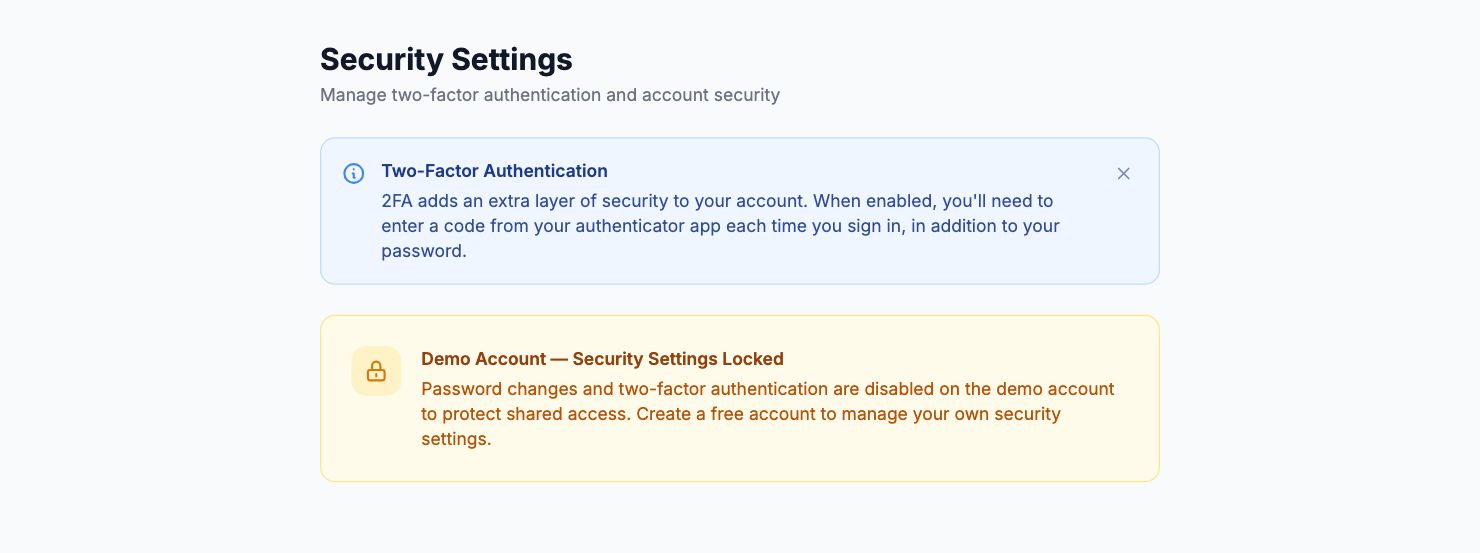
Enabling 2FA
Go to Settings → Security and click Enable Two-Factor Authentication.
You'll be shown a QR code. Scan it with any TOTP authenticator app — Google Authenticator, Authy, 1Password, or Microsoft Authenticator all work. Enter the 6-digit code your app generates to confirm the setup.
Save your backup codes. Shopimize generates a set of one-time backup codes when you enable 2FA. Store them somewhere safe — a password manager works well. If you lose access to your authenticator, these are the only way back in.
Logging in with 2FA active
After entering your password, you'll be asked for a 6-digit code from your authenticator app. The code refreshes every 30 seconds — enter it promptly.
Lost your authenticator
Use one of your backup codes to sign in. Once in, go to Settings → Security, disable 2FA, and set it up again with your new authenticator.
If you've lost both your authenticator and your backup codes, contact support at hello@shopimize.com from your account's registered email address.
Changing your password
Go to Settings → Security → Change Password. You'll need your current password. If you've forgotten it, use the Forgot Password flow from the login page.
Related Articles
- Plans & PricingCompare plans and understand what's included in each.
- Update Payment MethodHow to change or update your billing information.
- Cancel or Downgrade PlanSteps to cancel your subscription or move to a lower plan.
- Invoice DownloadsAccess and download your billing history and invoices.
- Managing Team Members & RolesInvite team members, set permissions, and manage access.
- Understanding Your Plan Usage & LimitsWhat counts toward your order limit and what happens when you reach it.