
Cancel or Downgrade Plan
Steps to cancel your subscription or move to a lower plan.
Cancelling or downgrading
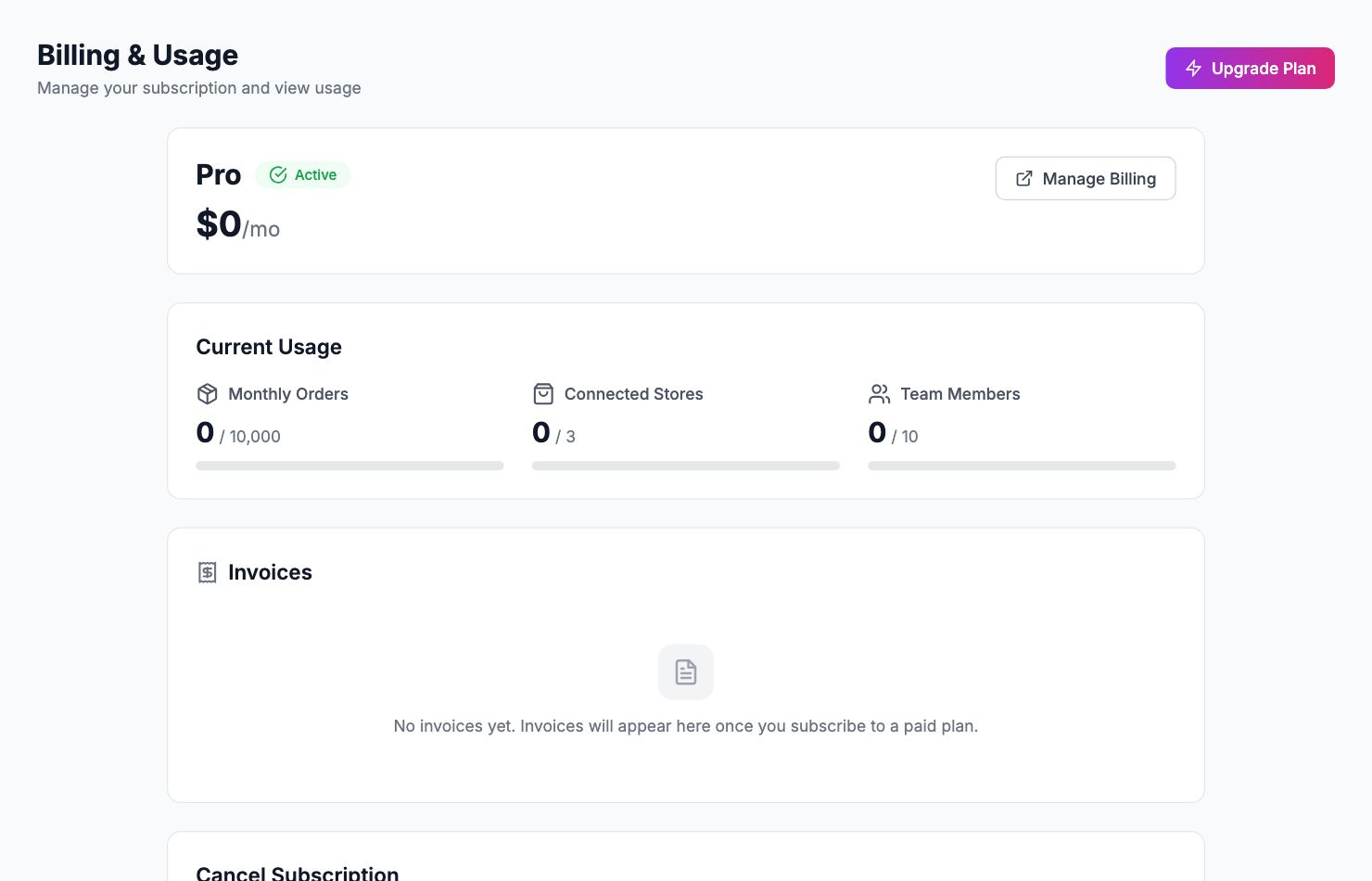
Downgrading
Go to Settings → Billing and click Change plan. Select the lower plan and confirm. The change takes effect at the end of your current billing period — you keep current access until then.
Cancelling
Go to Settings → Billing and click Cancel subscription. Your access continues until the end of the period you've already paid for. After that, your account pauses — data is kept for 90 days. Come back within that window and everything is intact. After 90 days, all data is permanently deleted.
Export before leaving
If you want to keep your data, go to Settings → Data Export and download a full export before cancelling.
Before you cancel
If something isn't working right or there's a feature you need, email us first at hello@shopimize.com. We're happy to help.
Related Articles
- Plans & PricingCompare plans and understand what's included in each.
- Update Payment MethodHow to change or update your billing information.
- Invoice DownloadsAccess and download your billing history and invoices.
- Managing Team Members & RolesInvite team members, set permissions, and manage access.
- Understanding Your Plan Usage & LimitsWhat counts toward your order limit and what happens when you reach it.
- Account Security & 2FAEnable two-factor authentication and manage your account security.