
Managing Team Members & Roles
Invite team members, set permissions, and manage access.
Managing team members and roles
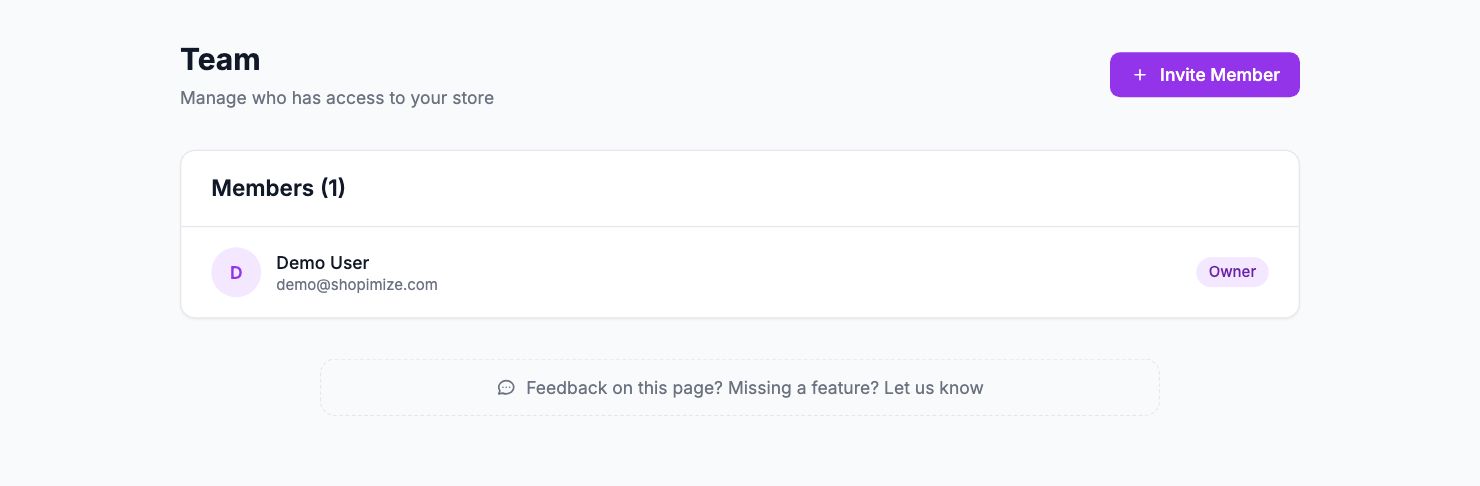
Adding someone
Go to Settings → Team and click Invite Member. Enter their email, select a role, and send. They get an email with a link to join. The link expires in 7 days — resend from the same page if needed.
Roles
Admin — full access to everything: analytics, settings, integrations, costs, and billing.
Member — read-only access to analytics and reports. Can't change costs, settings, or integrations. Right for a VA, agency, or employee who needs to see numbers but shouldn't change anything.
Changing a role
Three-dot menu next to the team member's name → Change role. Takes effect immediately.
Removing access
Three-dot menu → Remove member. Access is revoked immediately. Past activity is not deleted.
If someone left and needs to be removed
You can remove anyone from Settings → Team regardless of whether they're logged in. If they also knew your account password, change it from Settings → Security.
Related Articles
- Plans & PricingCompare plans and understand what's included in each.
- Update Payment MethodHow to change or update your billing information.
- Cancel or Downgrade PlanSteps to cancel your subscription or move to a lower plan.
- Invoice DownloadsAccess and download your billing history and invoices.
- Understanding Your Plan Usage & LimitsWhat counts toward your order limit and what happens when you reach it.
- Account Security & 2FAEnable two-factor authentication and manage your account security.