
Changing Your Plan
Move up, move down, or go back to Free — and what happens to your data.
Moving to a different plan
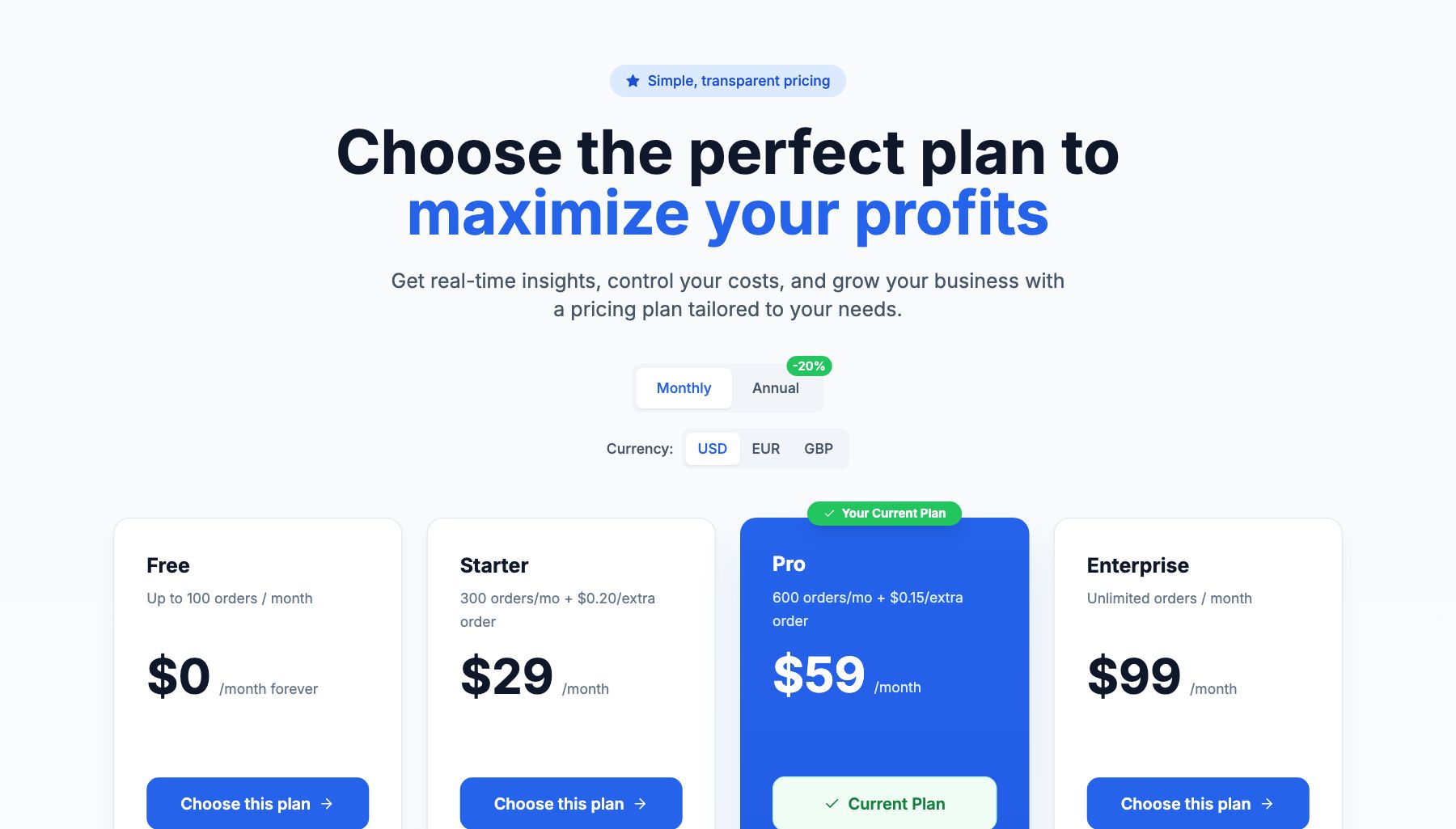
Where to do it
Open the pricing page from Settings → Billing, or from the plan badge in the sidebar. Every plan is shown side by side with the one you are on marked as your current plan, so you can see what changes before committing.
You can bill monthly or annually. Annual billing is charged once for the year at a lower effective rate; the saving is shown next to the toggle.
Upgrading
Pick the plan and confirm. The new limits apply as soon as the payment provider confirms the change — you do not have to re-sync anything, and nothing about your historical data changes.
Downgrading
Choose a smaller plan the same way. Your data is not deleted when you move down: what changes are the limits that apply going forward, such as how many orders a month are included. If you are currently above the limit of the plan you are moving to, check Settings → Usage first so the change does not surprise you.
Moving all the way back to Free is a separate action on the pricing page rather than a plan like the others.
If Shopify bills you
A subscription charged through Shopify rather than by card follows a different confirmation path — see the article on billing through Shopify.
Related Articles
- Plans & PricingCompare plans and understand what's included in each.
- Update Payment MethodHow to change or update your billing information.
- Cancel or Downgrade PlanSteps to cancel your subscription or move to a lower plan.
- Invoice DownloadsAccess and download your billing history and invoices.
- Managing Team Members & RolesInvite team members, set permissions, and manage access.
- Understanding Your Plan Usage & LimitsWhat counts toward your order limit and what happens when you reach it.