
⭐Features
Exporting Your Data (CSV & PDF)
Export orders, products, or P&L reports as CSV or PDF.
Exporting your data
Every major view in Shopimize has a CSV export. Use these to analyze data in a spreadsheet, share with your accountant, or feed into another tool.
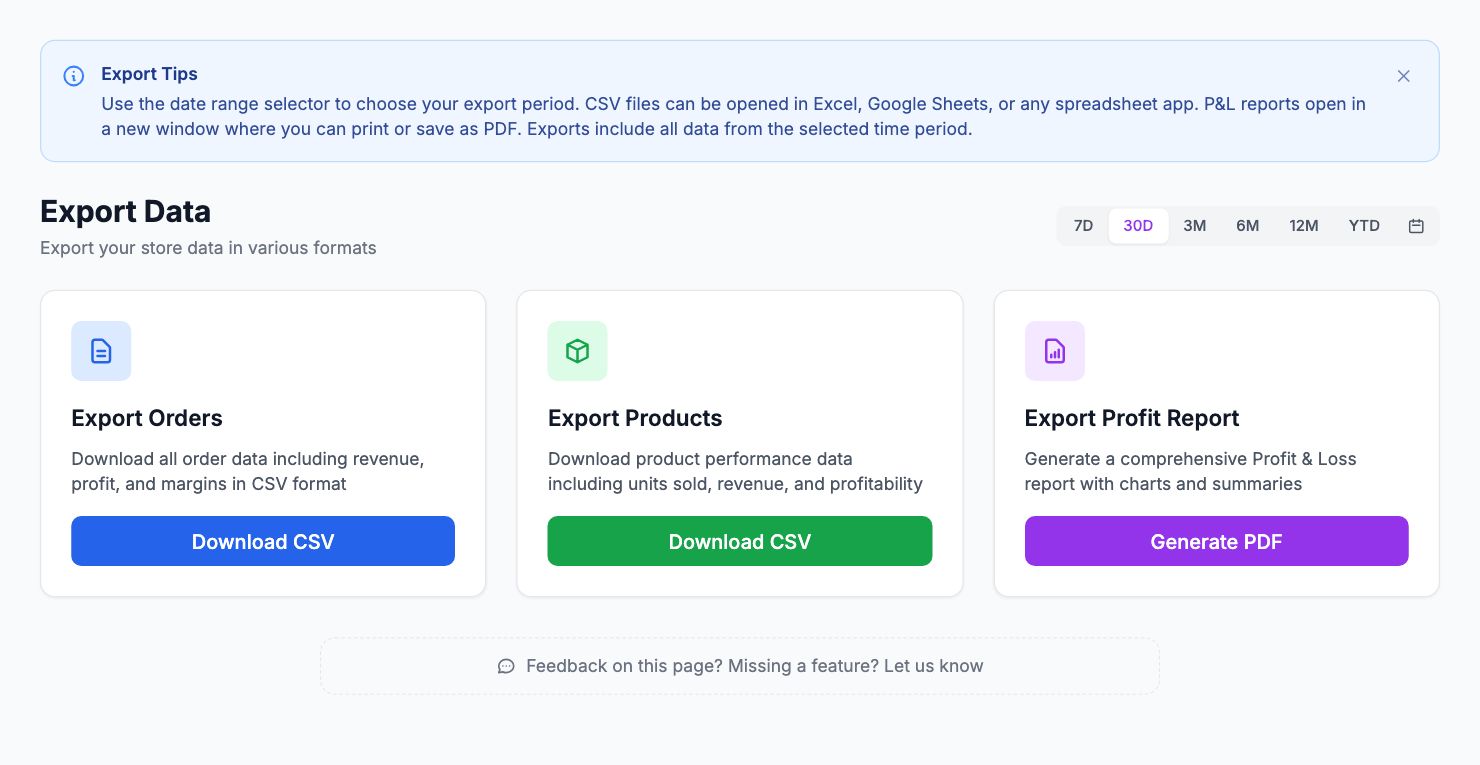
Where to find exports
- Orders — Performance → Orders → Export CSV (top right)
- Products — Performance → Products → Export CSV
- Customers — Performance → Customers → Export CSV
- P&L Report — Reports → P&L → Export CSV or PDF
- COGS template — Costs → Product Costs → Export CSV (to bulk-update costs)
How exports work
The CSV export includes all columns in the current view, filtered to whatever date range and filters are active. Apply filters first, then export — the export only includes what you see on screen.
PDF exports
The P&L report has a PDF option for a formatted document. Useful for sharing with your accountant or keeping records.
COGS bulk update workflow
Download the COGS export, fill in the "New COGS" column for each product, then re-import the file. This is the fastest way to update costs for a large catalog without editing each product individually.
Related Articles
- Product Performance AnalyticsIdentify your most and least profitable products.
- Cost Tracking & ManagementAn overview of how Shopimize tracks every type of cost.
- Marketing ROI AnalysisMeasure real return on ad spend across all your channels.
- Profit & Loss ReportsGenerate and export P&L reports for your store.
- Customer Lifetime ValueUnderstand which customers are most profitable over time.
- Orders AnalyticsBrowse and filter orders with per-order profit and margin data.