
Profit & Loss Reports
Generate and export P&L reports for your store.
Profit & Loss Reports
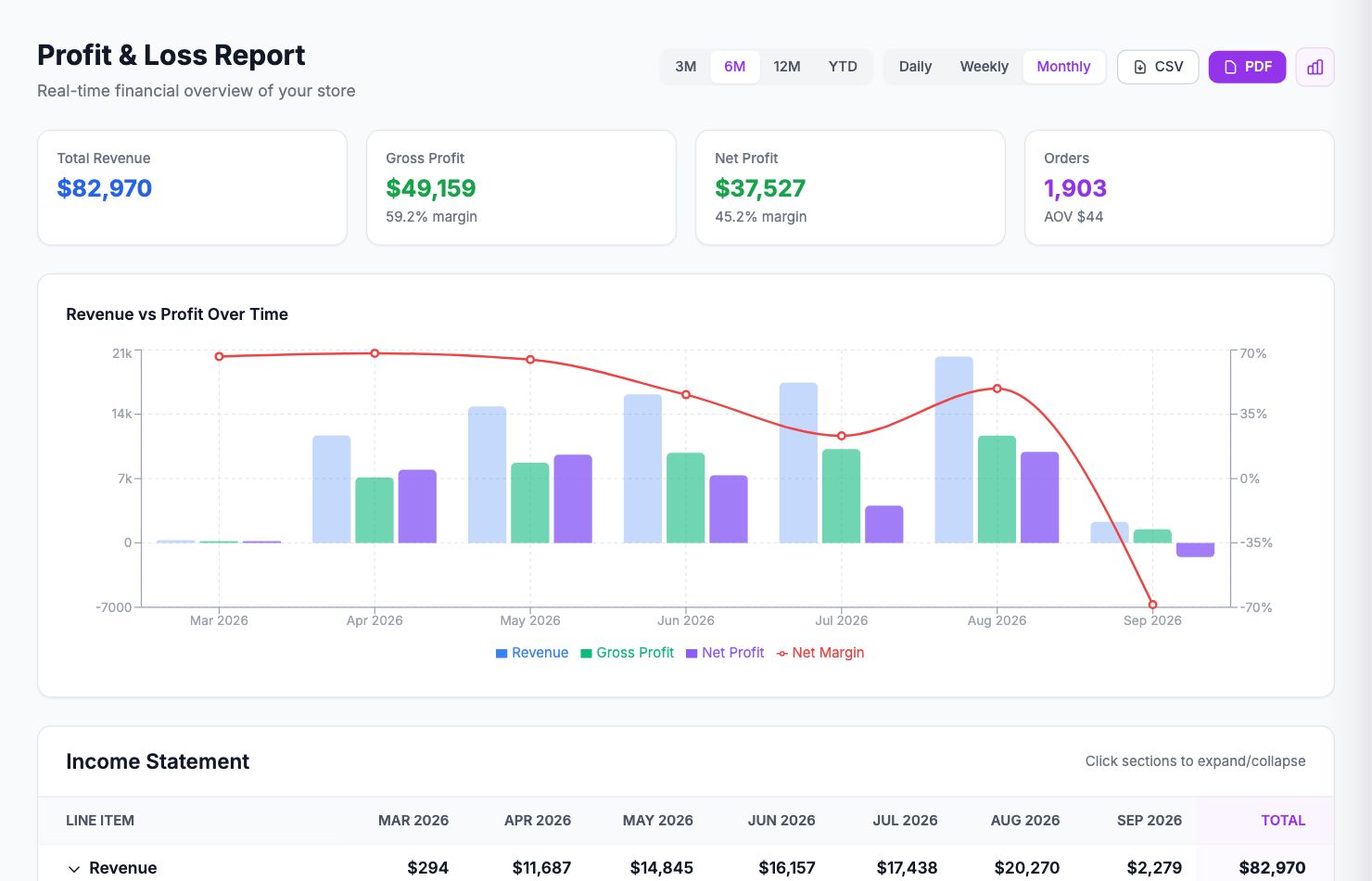
The P&L report gives you a structured financial statement for any date range you choose.
Accessing the report
Go to Reports → Profit & Loss. Select your date range and grouping — you can view by day, week, or month.
What's in the report
Revenue — gross sales after discounts
COGS — total cost of goods sold
Gross Profit — revenue minus COGS
Gross Margin — gross profit as a % of revenue
Operating Expenses — shipping costs, ad spend, transaction fees, custom expenses
Net Profit — gross profit minus all operating expenses
Net Margin — net profit as a % of revenue
Each line has a per-period column, so you can see trends across weeks or months at a glance.
Exporting
Click Export CSV to download the full report as a spreadsheet. There's also a PDF export if you need a formatted document to share or file.
AI analysis
The P&L page has an AI Insights button. Click it to get an automatic analysis of your margins, trends, and biggest cost drivers in the period. It reads the actual data on screen, not a generic template.
Tips
Run a monthly P&L at the end of each month before making any decisions about ad budgets or pricing. Compare the current month to the same month last year if you have seasonal patterns.
Related Articles
- Product Performance AnalyticsIdentify your most and least profitable products.
- Cost Tracking & ManagementAn overview of how Shopimize tracks every type of cost.
- Marketing ROI AnalysisMeasure real return on ad spend across all your channels.
- Customer Lifetime ValueUnderstand which customers are most profitable over time.
- Orders AnalyticsBrowse and filter orders with per-order profit and margin data.
- Channel PerformanceCompare profit and revenue across your sales channels.