
Goals & Progress Tracking
Set revenue, profit, order, and margin targets and track your progress.
Goals & Progress Tracking
Goals let you set financial targets for your store and track progress against them in real time. Find them in Settings → Goals.
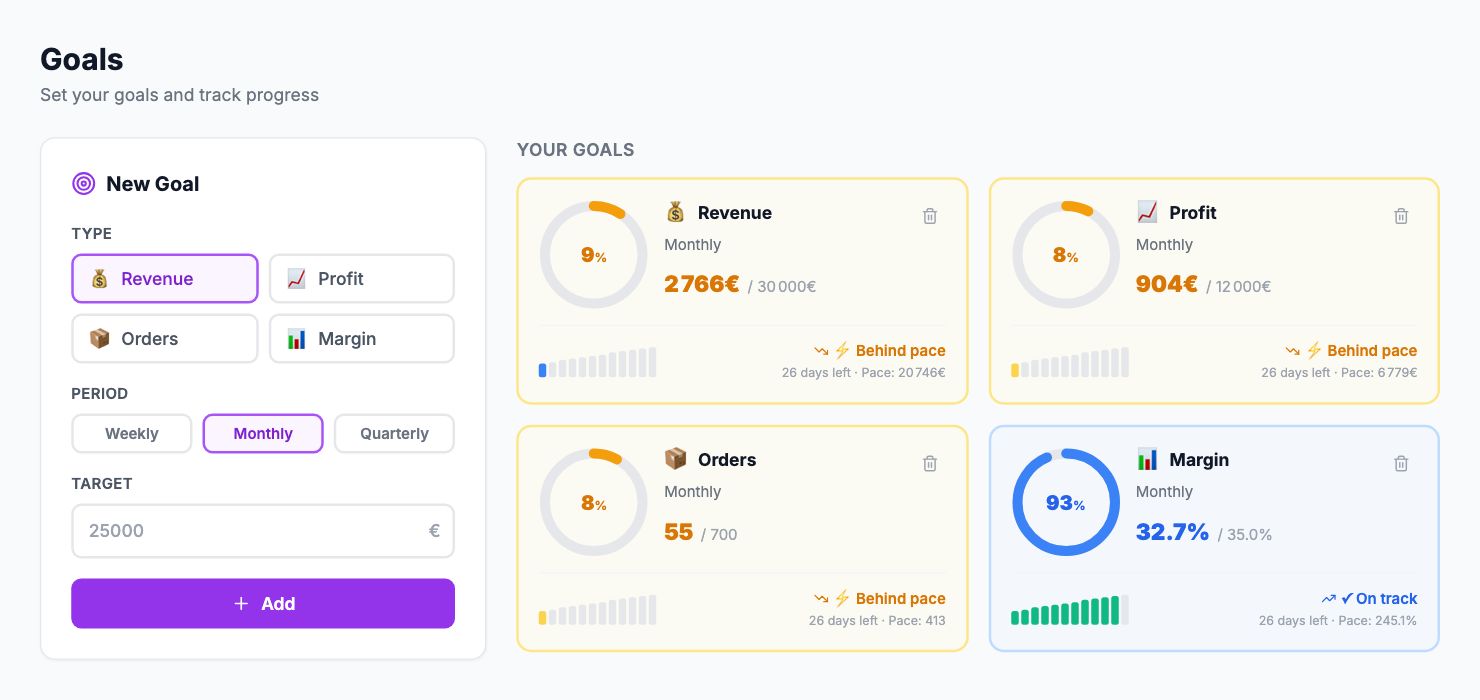
What you can track
You can create goals for four metrics:
Revenue — total sales target for the period
Profit — net profit target
Orders — number of orders target
Margin — net margin percentage target
Each goal runs over a weekly, monthly, or quarterly period.
Creating a goal
Click Add Goal, choose the metric type, set your target value, and pick the period. The goal activates immediately and starts tracking against your live data.
You can have multiple goals active at the same time — for example, a monthly revenue goal and a monthly profit goal running in parallel.
Reading the progress cards
Each goal card shows:
- The current value vs the target
- Percentage complete — how far you are toward the goal
- Pace indicator — whether you're ahead or behind where you should be at this point in the period. If you're 60% through the month, you should be at roughly 60% of your goal. At 40% with 60% of the period gone means you're behind.
- Days remaining in the period
The progress ring changes color: green when you've hit the goal, blue when you're on pace, amber when you're behind.
When you hit a goal
There's a small confetti animation when a goal hits 100%. Small thing, but it's a nice moment.
Deleting goals
Goals auto-reset each period. You can delete a goal at any time if your priorities change — the current period's data isn't affected.
Related Articles
- Product Performance AnalyticsIdentify your most and least profitable products.
- Cost Tracking & ManagementAn overview of how Shopimize tracks every type of cost.
- Marketing ROI AnalysisMeasure real return on ad spend across all your channels.
- Profit & Loss ReportsGenerate and export P&L reports for your store.
- Customer Lifetime ValueUnderstand which customers are most profitable over time.
- Orders AnalyticsBrowse and filter orders with per-order profit and margin data.