
Adding Your Product Costs (COGS)
How to enter product costs manually or via CSV import.
Adding product costs
Your COGS (Cost of Goods Sold) is the amount you paid to buy or manufacture each product. Without it, every profit and margin figure in Shopimize is incomplete.
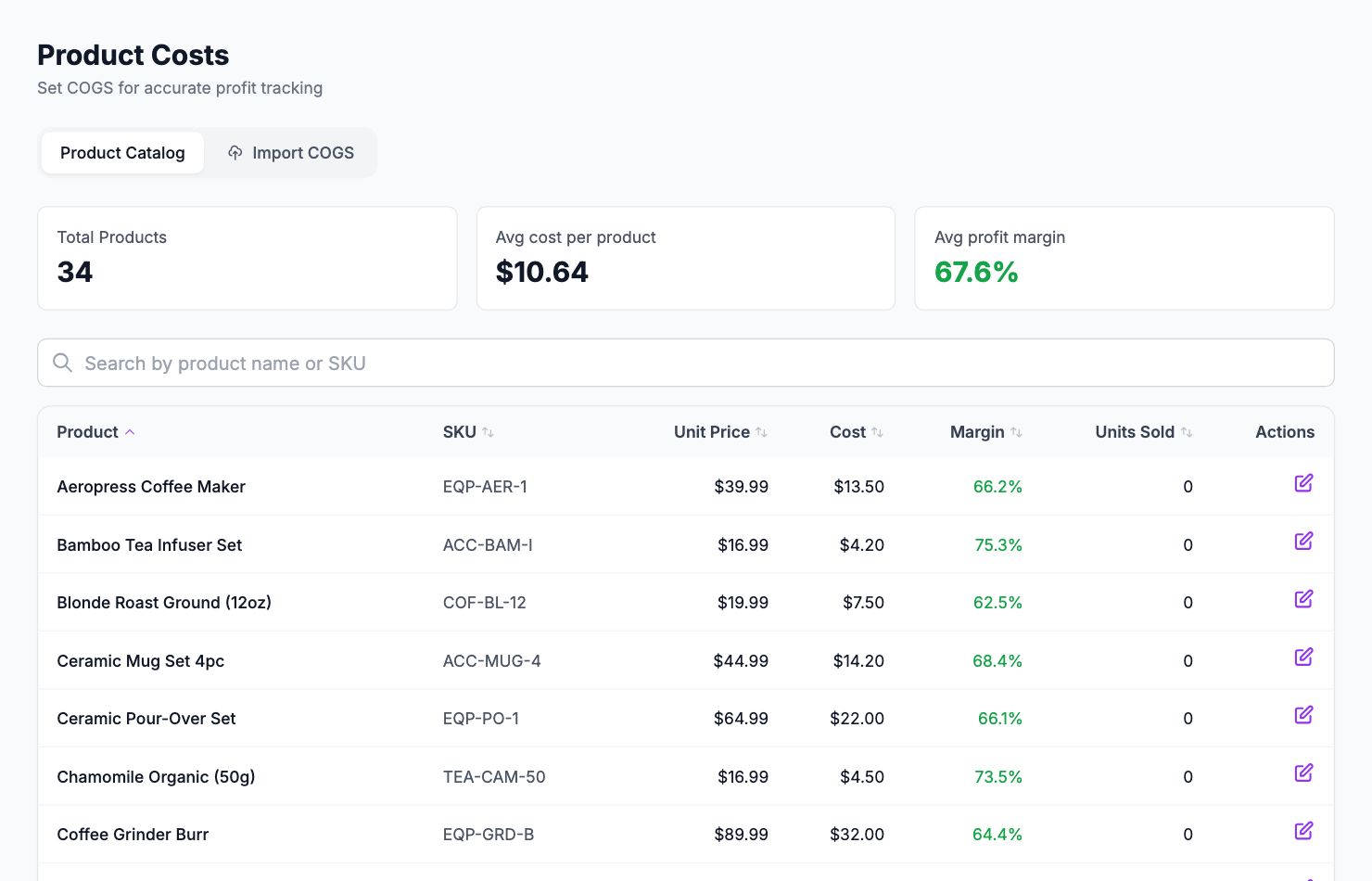
Entering costs manually
Go to Costs → Product Costs. Each row is a product. Click the cost field for any product and type the amount you pay per unit. Changes save immediately.
If your product has multiple variants with different costs (e.g. a t-shirt in different sizes that cost different amounts to produce), click the product row to expand variants and enter a cost per variant. Shopimize tracks costs at the variant level, so this is worth doing if the difference is meaningful.
Bulk import via CSV
If you have more than a handful of products, the CSV import is faster. Click Import COGS, then Download Template. This generates a spreadsheet pre-filled with your entire product catalog. Fill in the New COGS column and upload the file.
Before confirming the import, Shopimize shows you a preview of the changes. You'll also see an option to backfill historical orders — if you check this, the new costs will be applied to all past orders containing those products, not just future ones. This is usually what you want.
Keeping costs up to date
Costs change — supplier prices go up, you negotiate a better deal, or you switch manufacturers. Update your COGS whenever your actual costs change. A product still priced at an old cost will give you misleading margin data.
Where COGS appears
Once entered, product costs feed into every profit calculation across the app: the dashboard, orders page, product analytics, P&L report, and customer LTV.
Related Articles
- Quick Start GuideGet Shopimize up and running in under 5 minutes.
- Connect Your StoreHow to connect Shopify, WooCommerce, PrestaShop, or Wix.
- Invite Team MembersAdd teammates so they can access your store's analytics.
- Understanding Your DashboardWhat each metric means and how to read the main dashboard.
- Onboarding Wizard WalkthroughA step-by-step walkthrough of the onboarding wizard.
- Your First Profit CheckHow to verify your profit data is accurate after setup.