
Invite Team Members
Add teammates so they can access your store's analytics.
Inviting team members
If you work with a partner, a VA, a CFO, or an agency, you can give them access without sharing your password.
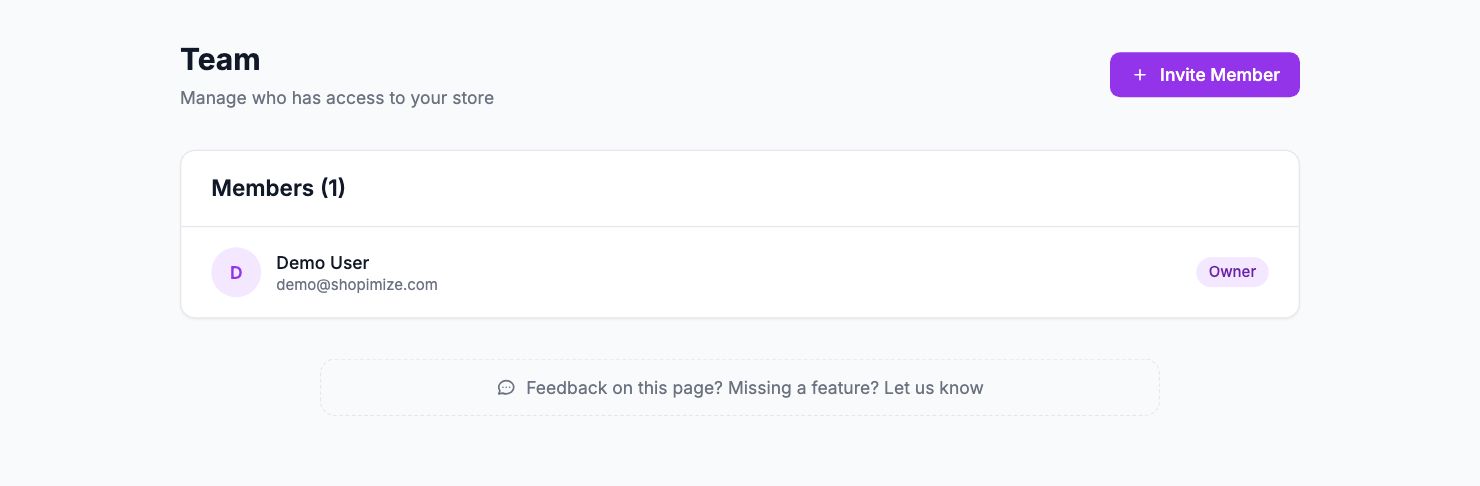
How to invite someone
Go to Settings → Team. Click Invite Member, enter their email address, and click Send Invite. They'll receive an email with a link to accept and create their own login. Invites expire after 7 days — you can resend from the same page if needed.
Roles
Admin — full access to everything: analytics, settings, integrations, costs, and billing. Use for business partners or a CFO who needs complete visibility.
Member — view-only access to analytics and reports. Cannot change settings, manage integrations, or access billing. Good for a VA or an employee who needs to see the numbers but shouldn't change anything.
Managing access
You can see all active members and pending invites in Settings → Team. To remove someone, click the three-dot menu next to their name and select Remove. Access is revoked immediately.
Team size limits
The number of team members you can invite depends on your plan. Check Settings → Billing to see your current limit.
Related Articles
- Quick Start GuideGet Shopimize up and running in under 5 minutes.
- Connect Your StoreHow to connect Shopify, WooCommerce, PrestaShop, or Wix.
- Understanding Your DashboardWhat each metric means and how to read the main dashboard.
- Onboarding Wizard WalkthroughA step-by-step walkthrough of the onboarding wizard.
- Adding Your Product Costs (COGS)How to enter product costs manually or via CSV import.
- Your First Profit CheckHow to verify your profit data is accurate after setup.