
Understanding Your Dashboard
What each metric means and how to read the main dashboard.
Your dashboard at a glance
The dashboard shows your store's financial performance for the selected date range. Everything is calculated in real time based on the data you've connected — orders from Shopify, costs you've entered, and ad spend from your platforms.
The headline metrics
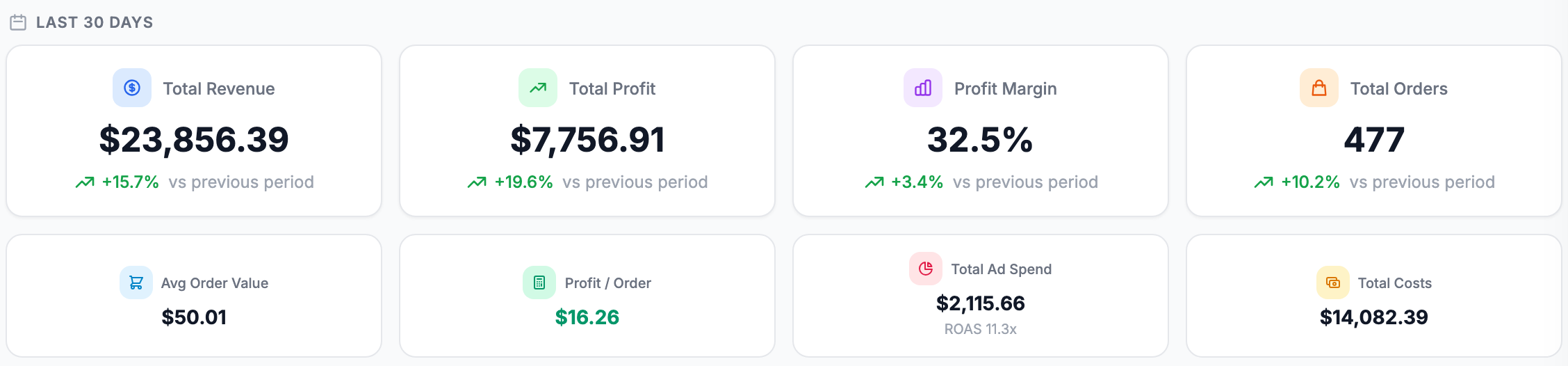
Revenue is your gross sales figure from Shopify, after discounts but before any costs are deducted.
Net Profit is what actually matters. It's revenue minus COGS, shipping costs, ad spend, transaction fees, and any custom expenses you've added. If this number is lower than you expected, check your cost inputs in Costs → Product Costs and Costs → Breakdown.
Net Margin is net profit as a percentage of revenue. A healthy e-commerce margin is typically between 15% and 30%, though this varies significantly by product category.
Ad Spend is the total you've spent across all connected ad platforms for the period. This is pulled directly from each platform's API — it's not an estimate.
The daily chart
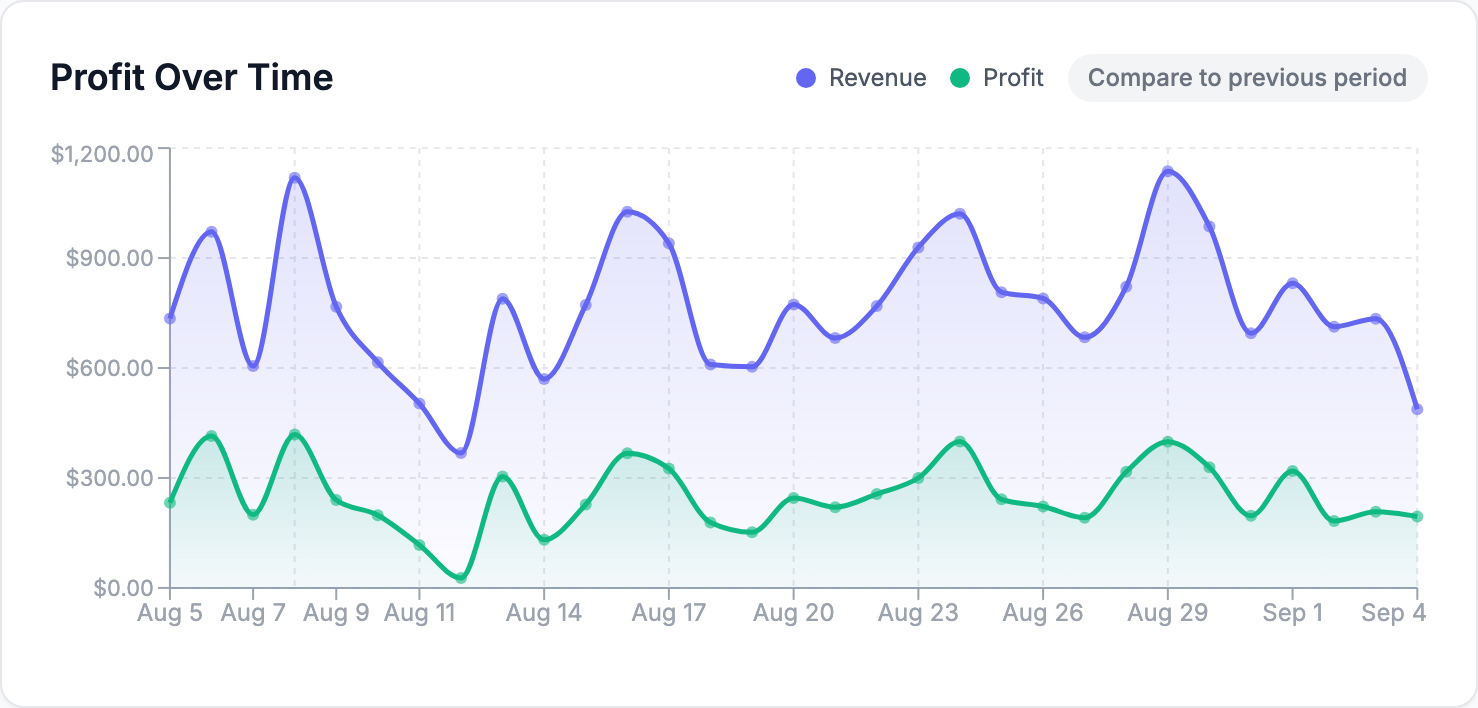
The main chart shows revenue and profit by day. Look for days where revenue is high but profit dips — those usually point to heavy discounting, a spike in ad spend, or a batch of orders with high shipping costs.
The comparison period
Each metric card shows a percentage change versus the previous equivalent period. A 30-day view compares against the prior 30 days, a 7-day view against the prior 7 days, and so on.
Why profit might look lower than expected
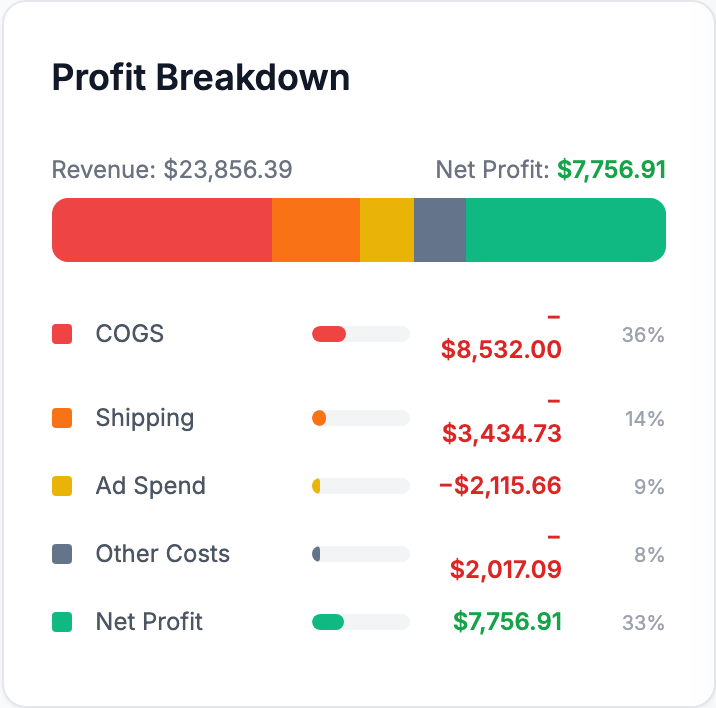
The most common reasons:
- Product costs haven't been entered yet (Costs → Product Costs)
- Shipping costs aren't set (Costs → Shipping)
- Ad platforms aren't connected (Integrations)
- Transaction fees aren't configured (Settings → Commissions)
Start there before assuming the data is wrong.
Related Articles
- Quick Start GuideGet Shopimize up and running in under 5 minutes.
- Connect Your StoreHow to connect Shopify, WooCommerce, PrestaShop, or Wix.
- Invite Team MembersAdd teammates so they can access your store's analytics.
- Onboarding Wizard WalkthroughA step-by-step walkthrough of the onboarding wizard.
- Adding Your Product Costs (COGS)How to enter product costs manually or via CSV import.
- Your First Profit CheckHow to verify your profit data is accurate after setup.