
Quick Start Guide
Get Shopimize up and running in under 5 minutes.
Getting up and running
After signing up, Shopimize walks you through a short onboarding wizard. It covers the four things you need to do before the numbers make sense: connect your store, set your product costs, link at least one ad platform, and configure your shipping costs.
None of these steps are optional — without them, profit calculations are incomplete.
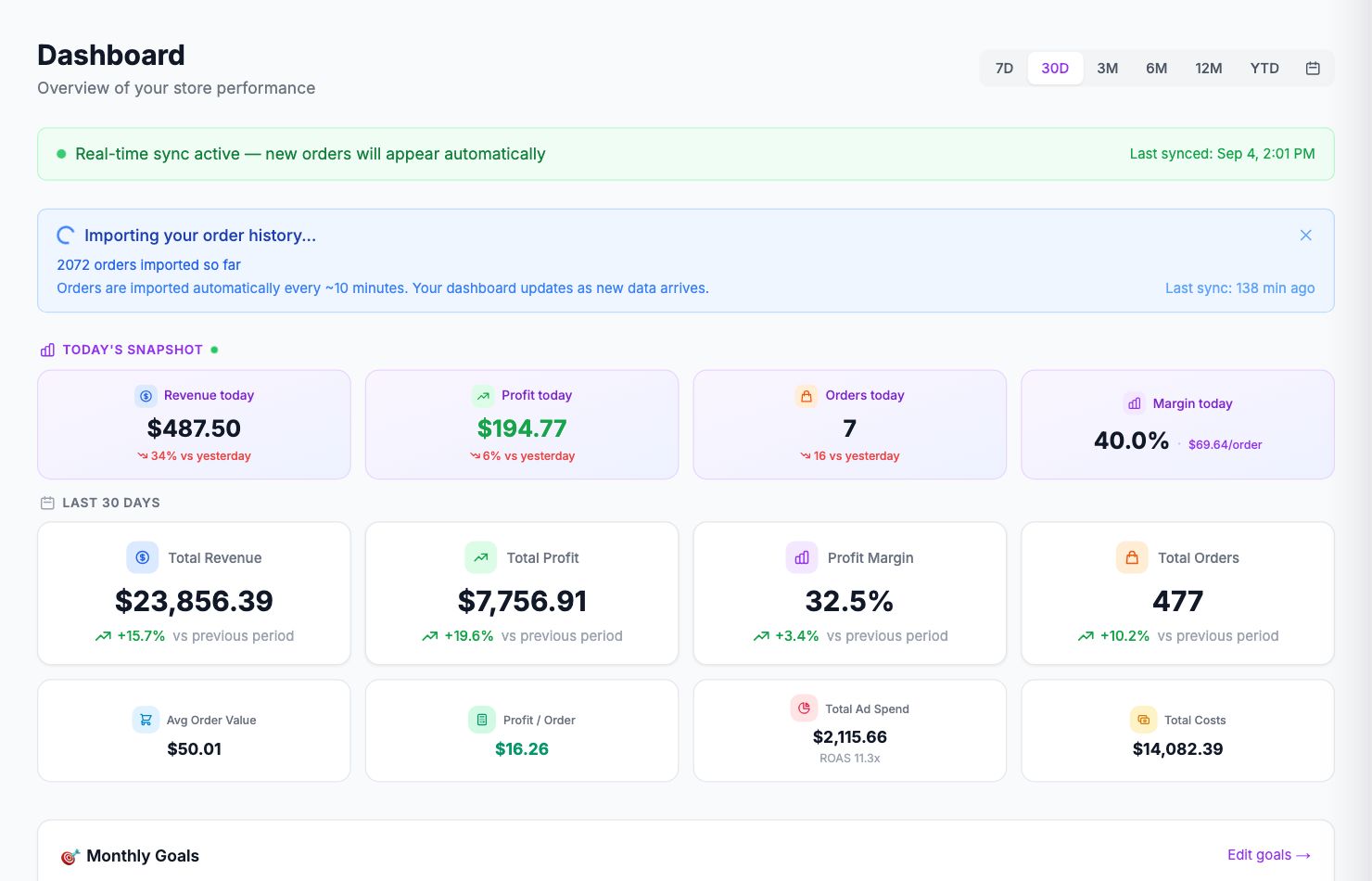
Step 1: Connect your Shopify store
Go to Integrations in the sidebar and click Connect Shopify. You'll be redirected to Shopify to approve read-only access. After you approve, Shopimize imports your last 90 days of orders automatically. Depending on order volume, this takes between 1 and 5 minutes.
Step 2: Set your product costs (COGS)
Go to Costs → Product Costs. You'll see all your products listed. Enter the cost you paid per unit for each product. If you have many products, use the CSV import — download the template, fill in the "New COGS" column, and upload it back.
This step matters more than any other. Without COGS, every margin figure in the dashboard is wrong.
Step 3: Connect your ad platforms
Go to Integrations and connect whichever platforms you use — Meta Ads, Google Ads, TikTok Ads, and so on. Ad spend pulls in automatically once connected.
Step 4: Set up shipping costs
Go to Costs → Shipping. You can either connect a shipping carrier (ShipStation, Easyship, etc.) or enter a flat cost per order in Costs → Shipping. Both work fine — use whatever matches how you ship.
Once those four things are done, your dashboard will show real profit numbers.
Related Articles
- Connect Your StoreHow to connect Shopify, WooCommerce, PrestaShop, or Wix.
- Invite Team MembersAdd teammates so they can access your store's analytics.
- Understanding Your DashboardWhat each metric means and how to read the main dashboard.
- Onboarding Wizard WalkthroughA step-by-step walkthrough of the onboarding wizard.
- Adding Your Product Costs (COGS)How to enter product costs manually or via CSV import.
- Your First Profit CheckHow to verify your profit data is accurate after setup.