
COGS Not Appearing in Dashboard
Why product costs might not be reflected in your profit figures.
COGS Not Appearing in Your Dashboard
If your profit looks equal to your revenue (100% margin on everything), product costs haven't been entered, or they were entered but aren't mapping correctly to your orders.
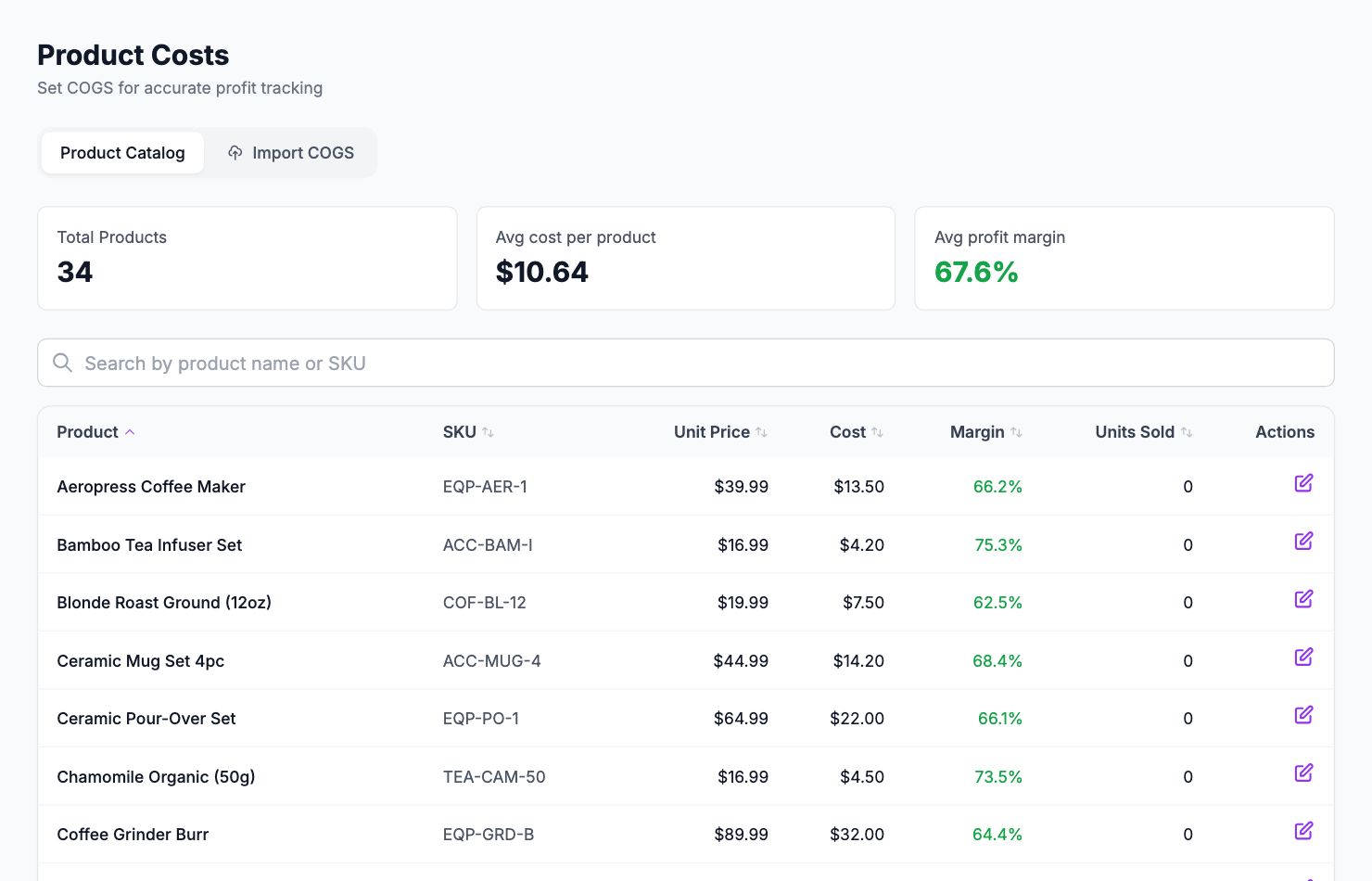
Check 1: Have costs been entered at all?
Go to Costs → Product Costs. If every product shows €0.00, nothing has been entered yet. Add costs manually or use the CSV import.
Check 2: Variant-level mapping
Shopimize tracks costs at the variant level. If you have a product with multiple variants and entered a single cost at the product level, it may not map correctly to individual order line items.
To check: click any product in Costs → Product Costs to expand its variants. Confirm that each variant has its own cost entered.
Check 3: Historical orders vs new orders
When you enter COGS, the change applies to future synced orders by default. To apply new costs to past orders, use the backfill option — it appears when you save a cost update or confirm a CSV import.
If you entered COGS after the initial sync and didn't backfill, your historical orders will still show zero cost. Run a backfill to correct them.
Check 4: Shopify's cost_price field
If you have product costs in Shopify's own cost_price field, Shopimize tries to pull those values during the initial sync. If they were empty at sync time, they won't auto-populate later — you'll need to enter them manually in Shopimize.
Still not fixed?
Trigger a manual resync from Integrations → Shopify → Sync Now. If the issue persists, contact support at hello@shopimize.com with the name of a specific product that's showing zero cost so we can investigate directly.
Related Articles
- Data Not SyncingWhat to check when your Shopify orders or ad data stops updating.
- Missing Orders or ProductsWhy some orders or products might not appear in Shopimize.
- Incorrect Profit CalculationsCommon reasons profit looks wrong and how to fix them.
- Connection ErrorsFix integration errors when a platform shows as disconnected.
- Ad Spend Doesn't Match PlatformWhy ad spend in Shopimize might differ from what your ad platform shows.
- Orders Showing Zero ProfitWhy individual orders might show $0 profit or 100% margin.