
Connection Errors
Fix integration errors when a platform shows as disconnected.
Connection errors
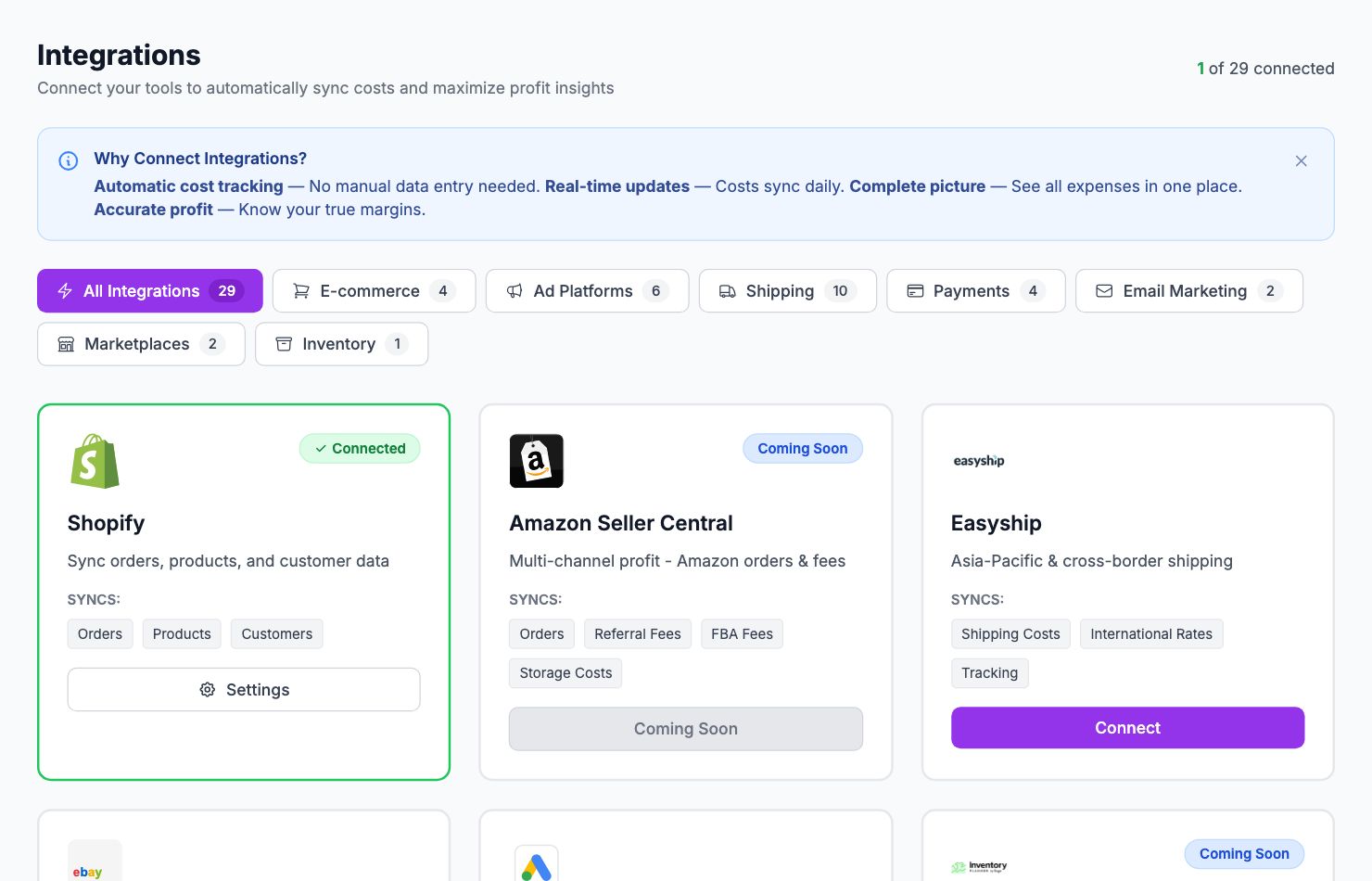
"Authorization failed" or "Invalid credentials"
This usually means the API key or OAuth token has expired or been revoked. Go to Integrations, find the platform showing the error, and click Reconnect. You'll be taken through the authorization flow again.
Common causes:
- You changed your password on the platform
- You revoked the app's access from the platform's settings
- The token expired (some platforms have short-lived tokens)
"Store not found" (WooCommerce or PrestaShop)
Double-check the store URL you entered. It should be the root domain with https://, no trailing slash, no subdirectory path. Example: https://yourstore.com — not https://yourstore.com/shop.
For WooCommerce: make sure the WooCommerce REST API is enabled (it is by default but can be disabled by some security plugins).
For PrestaShop: make sure the webservice is enabled under Advanced Parameters → Webservice.
"Rate limited"
The platform is temporarily blocking requests because too many were made in a short time. Shopimize handles this automatically — wait 15–30 minutes and try again. If it persists for more than an hour, contact support.
Ad platform shows "No ad accounts found"
After connecting an ad platform, if no accounts appear, it usually means the account you connected doesn't have any active ad accounts, or you connected the wrong account. Disconnect and reconnect, making sure to log in with the account that has access to your campaigns.
Still not connecting
Email hello@shopimize.com with:
- The name of the integration
- The exact error message shown
- The URL of your store (for e-commerce integrations)
Related Articles
- Data Not SyncingWhat to check when your Shopify orders or ad data stops updating.
- Missing Orders or ProductsWhy some orders or products might not appear in Shopimize.
- Incorrect Profit CalculationsCommon reasons profit looks wrong and how to fix them.
- COGS Not Appearing in DashboardWhy product costs might not be reflected in your profit figures.
- Ad Spend Doesn't Match PlatformWhy ad spend in Shopimize might differ from what your ad platform shows.
- Orders Showing Zero ProfitWhy individual orders might show $0 profit or 100% margin.