
Re-authenticating a Disconnected Integration
How to fix an integration that has lost its connection or expired credentials.
Re-authenticating a disconnected integration
OAuth tokens — the credentials Shopimize uses to access your ad platforms and store — expire or get revoked from time to time. When this happens, data stops syncing until you reconnect.
How to know if reconnection is needed
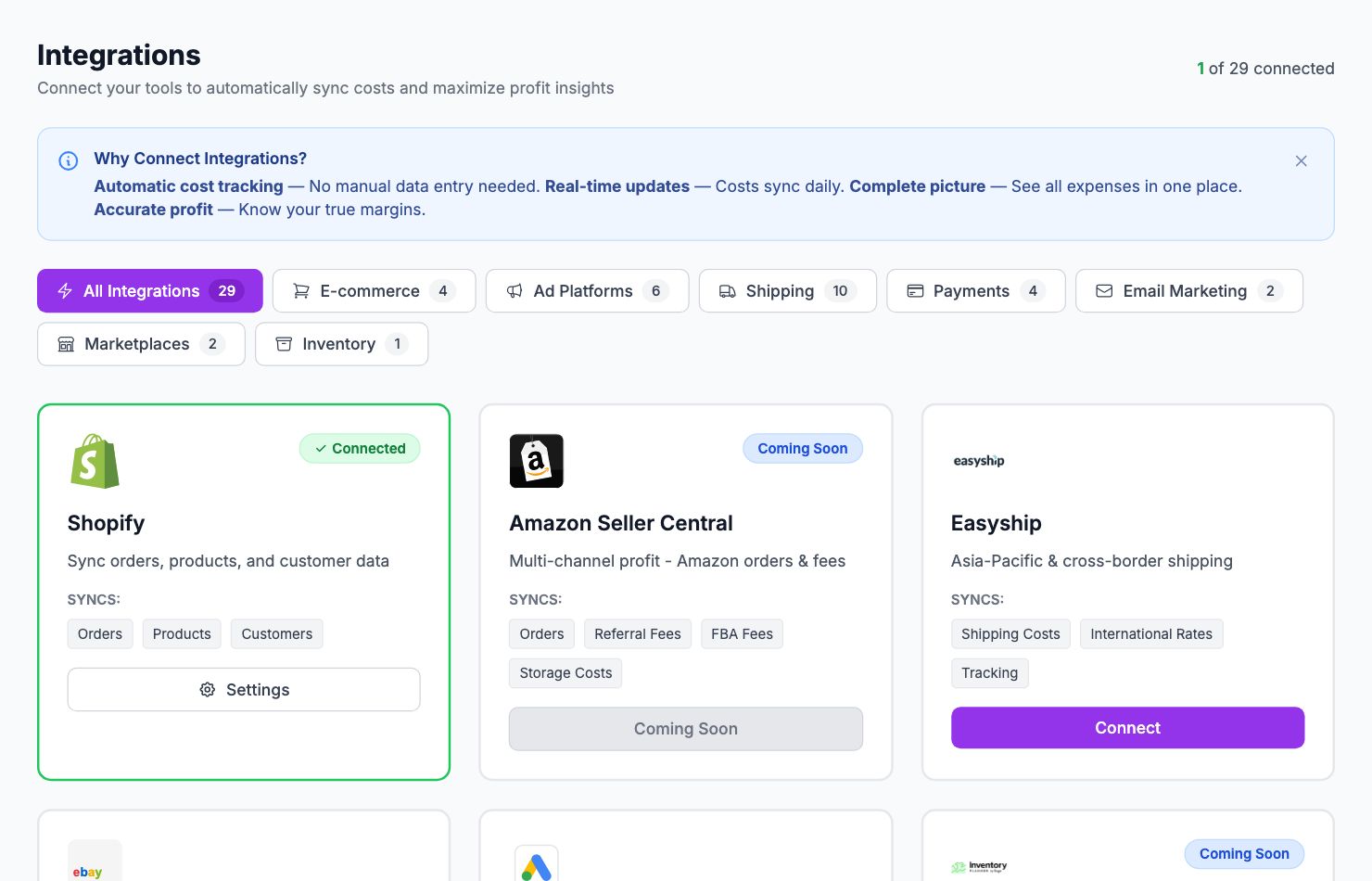
Go to Integrations. Any integration with a connection problem shows a warning indicator. Click it to see the specific error message.
You'll also receive an email notification when a sync failure occurs.
How to reconnect
- Go to Integrations
- Click the integration that's disconnected
- Click Reconnect (or Reauthorize)
- Complete the OAuth flow on the platform's side
- You'll be returned to Shopimize and syncing resumes automatically
The reconnection process is identical to the initial setup. You don't lose any historical data — Shopimize just picks up where it left off.
Why tokens expire
- You changed your password on that platform
- You or someone else revoked the app's access in the platform settings
- The platform's security policy rotates tokens periodically
- The token had a time limit built in (some platforms use short-lived tokens)
Multiple integrations disconnected at once
If several integrations disconnected around the same time, it's likely due to a security policy change on your end (like a company-wide password reset). Reconnect each one individually.
Staying connected
To prevent unexpected disconnections: don't revoke Shopimize's access in your platform's app settings. If you need to do a password change on a connected platform, check Integrations afterward to make sure everything is still green.
Related Articles
- Data Not SyncingWhat to check when your Shopify orders or ad data stops updating.
- Missing Orders or ProductsWhy some orders or products might not appear in Shopimize.
- Incorrect Profit CalculationsCommon reasons profit looks wrong and how to fix them.
- Connection ErrorsFix integration errors when a platform shows as disconnected.
- COGS Not Appearing in DashboardWhy product costs might not be reflected in your profit figures.
- Ad Spend Doesn't Match PlatformWhy ad spend in Shopimize might differ from what your ad platform shows.